How to Fix Shopify Local Delivery for Online Stores
To fix Shopify local delivery, find where it breaks: checkout, scheduling, routing…
Insights
Shopify's built-in settings cover delivery zones and in-store pickup but not bookable dates, time slots or slot limits. This guide shows how to set up all three together, step by step, so customers book times your team can keep.
To run local delivery, store pickup and scheduling on Shopify, decide where each location delivers and which stores offer pickup, then add a scheduling layer so customers book a delivery date or pickup slot your team can actually fulfill. Shopify's built-in settings cover where you deliver and where customers collect; a scheduling app covers when, and the work that happens after checkout.
This guide walks through both halves: what Shopify does on its own, where it stops, and a five-step plan to set up delivery, pickup and scheduling as one flow.
Local shoppers search for an outcome, not just a product: "local delivery near me", "same-day delivery", "pickup today". When your store answers that question before checkout, buyers hesitate less. When it can't, they leave or open a support ticket.
The stakes are real. According to AlixPartners' 2026 Home Delivery Survey, more than 85% of consumers say a poor delivery experience reduces their willingness to buy again. AlixPartners, 2026 Home Delivery Survey (via Mondaq) (Jun 2026)
Delivery, pickup and scheduling solve three different parts of the same promise:
Offering only one of them leaves customers out. Offering all three without scheduling leaves your team guessing what tomorrow looks like.
Shopify includes local delivery and pickup in store in its shipping and delivery settings. Here is what its Help Center describes (checked Oct 2, 2026), next to what a scheduling app adds.
| Need | Shopify built-in | With a scheduling app such as ScrollEngine |
|---|---|---|
| Delivery area | A set distance from the location (maximum 100 miles) or a list of postal codes | ZIP codes, a radius or zones drawn on a map, per location |
| Delivery fee | A delivery price per zone, with a minimum order price | Rates by order value or weight, per zone or rule |
| Pickup | Customer chooses a location; you set a processing time; a Ready for pickup email | Pickup slots per store, a store finder with drive distance and time, ready messages by email, SMS or WhatsApp |
| Date and time slot | Not described in either Help Center page | A date and slot calendar with prep time, cutoffs, blackout dates and holidays |
| Limit per slot or day | Not described | A capacity for each slot and day, per store |
| Routes, drivers, tracking | Not described | Route optimization, a driver app with proof of delivery, and a live tracking page |
One built-in rule is worth knowing before you plan: Shopify says customers "can't choose to have some items shipped and some items locally delivered on the same order", so local delivery only appears when every physical product in the cart can be delivered from one location. If it isn't showing at all, start with local delivery not showing at checkout.
Built-in settings are the starting point. Once you want customers to book times, or need to stop taking more orders than your team can handle, add ScrollEngine for bookable slots with a limit on each one.
Start with the map, not the calendar.
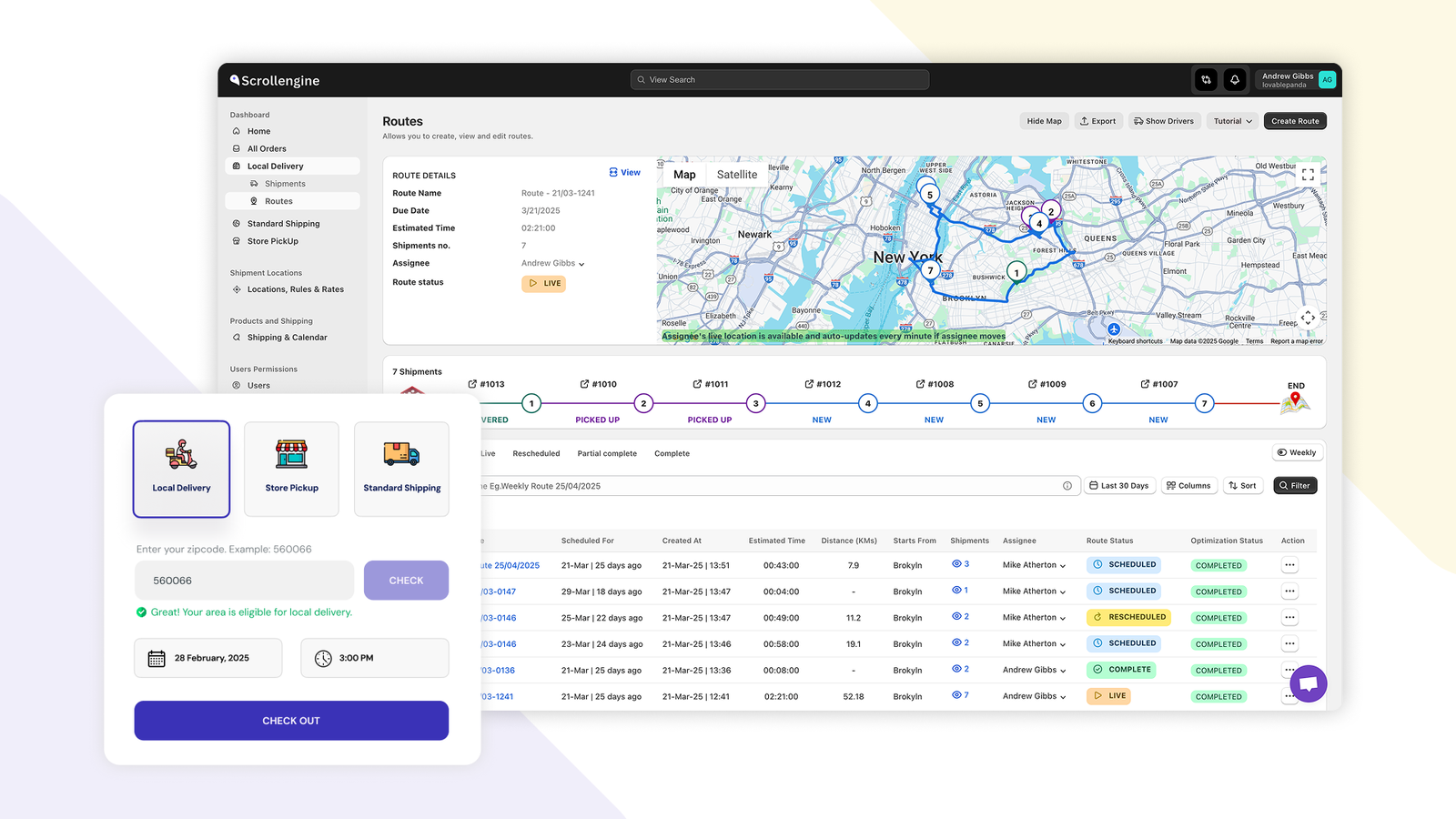
In ScrollEngine, zones and fees live on each location, and location rules send every order to the right store or warehouse. See the overview of local delivery for Shopify.
Pickup needs no delivery run, because the customer makes the trip.
If customers can choose between several stores, a store finder that shows drive distance and time helps them pick the convenient one. Our post on how a pickup date picker improves in-store pickup covers pickup slots and counter planning in detail.
Scheduling is what turns "we deliver locally" into a promise your team can plan around. For each location and method, set:
Delivery and pickup each get their own slots and capacity, so a full delivery day doesn't close the pickup counter. For how to size slots and cutoffs, read how smarter delivery scheduling helps local stores.
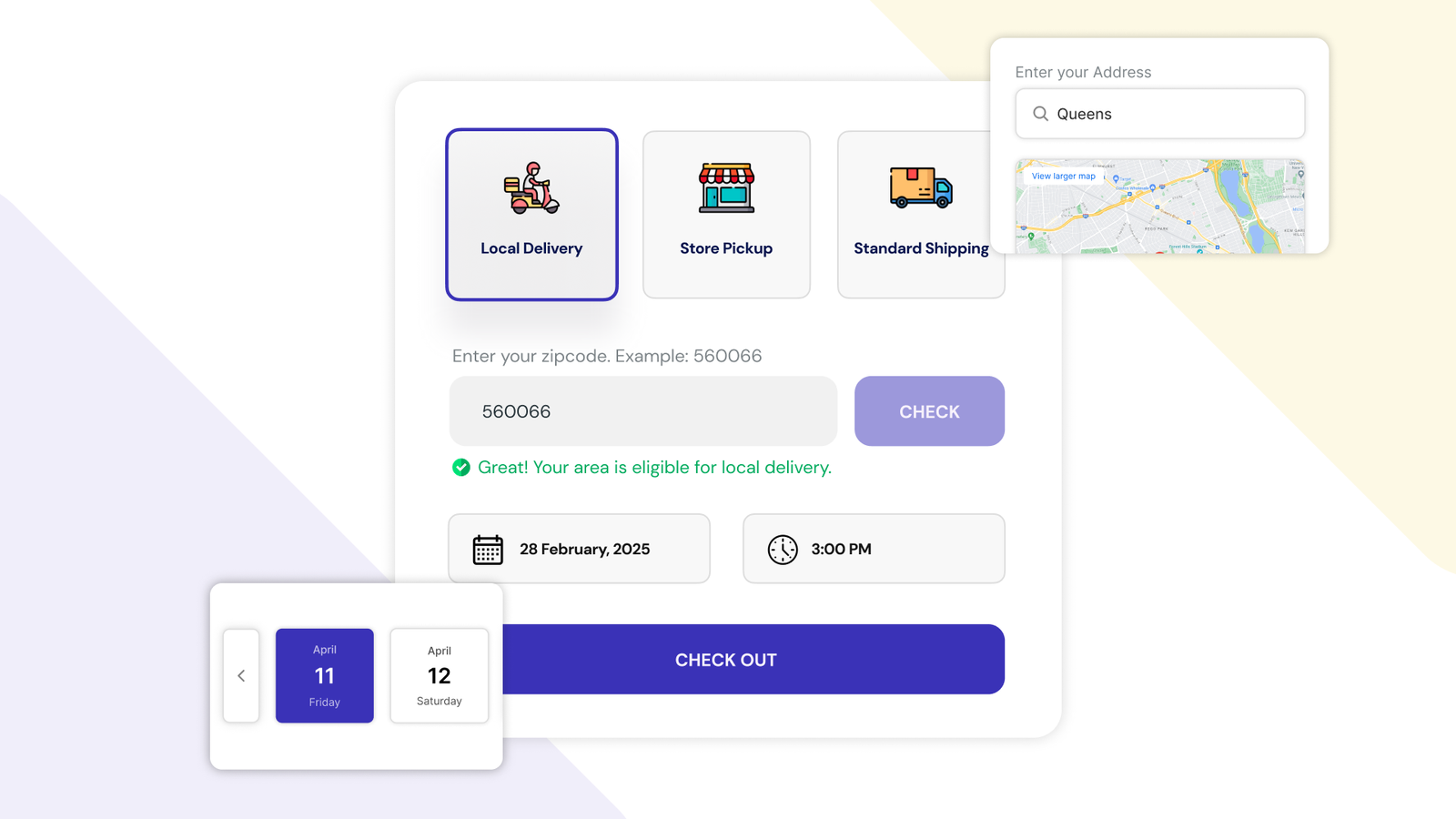
Customers decide faster when they see their options early. ScrollEngine adds a delivery-method chooser to the cart, the cart drawer and the product page:
Two details stop orders from slipping through without a date. Checkout stays closed until a slot is chosen, express checkout buttons can be hidden in the cart, and on Shopify Plus the date and time picker can also sit inside checkout. See the delivery date picker for the full setup. Weighing apps? See how ScrollEngine compares.
Scheduling decides when orders go out. The last step is getting them there and telling customers where they are.
Clear updates mean fewer "where is my order?" questions for your team to answer by hand.

This guide is the overview. Each of these goes deeper on one part:
ScrollEngine's Local Delivery + Pickup Date:S app brings the delivery and pickup choice, the date and slot calendar, routes, the driver app and customer updates into one flow for Shopify stores. It starts with a 7-day free trial, so you can set up your zones and slots and test them on your own storefront first.
👉 Get started with ScrollEngine on the Shopify App Store today.
FAQ
Yes. In your Shopify shipping and delivery settings, each location can offer local delivery within a set distance (up to 100 miles) or to listed postal codes, with a minimum order price and a delivery price. Pickup in store lets customers choose a location and see a processing time, and sends a Ready for pickup email when you mark the order ready.
Not with the built-in settings: Shopify's Help Center pages for local delivery and pickup in store (checked Oct 2, 2026) describe no customer-chosen dates or time slots. A delivery date picker app adds them. On Shopify Plus the picker can sit inside checkout; on other plans customers choose the date and slot in the cart.
With local delivery, your own drivers or a courier bring the order to the customer's address inside your delivery area. With local pickup (also called store pickup, click and collect or BOPIS), the customer orders online and collects the order at one of your locations.
Use an app with slot capacity. In ScrollEngine you set a capacity for each slot and day, per store, and see remaining capacity as orders book. Base the number on how many orders your drivers or your pickup counter can handle in that window.
Usually the address is outside the delivery area, an item in the cart can't be delivered from that location, local delivery isn't turned on for the location, or the customer used an express checkout other than Shop Pay. Shopify only offers local delivery when every physical product in the cart can be delivered from one location.
From the blog
To fix Shopify local delivery, find where it breaks: checkout, scheduling, routing…
Most Shopify stores need five local delivery tools: zones and rates, a date and time slot picker with limits…
ScrollEngine, our app, covers delivery and pickup slots, routes, a driver app and tracking in one app.
Book a demo and we'll walk you through the platform set up like your stores, or request a quote for your locations and how you deliver.
2,000+ merchants trust us (as of Oct 2026)100+ merchants rate us 5.0 stars on the Shopify App Store (as of Oct 2026)