The Shopify Local Delivery Tools You Actually Need
Most Shopify stores need five local delivery tools: zones and rates, a date and time slot picker with limits…
Insights
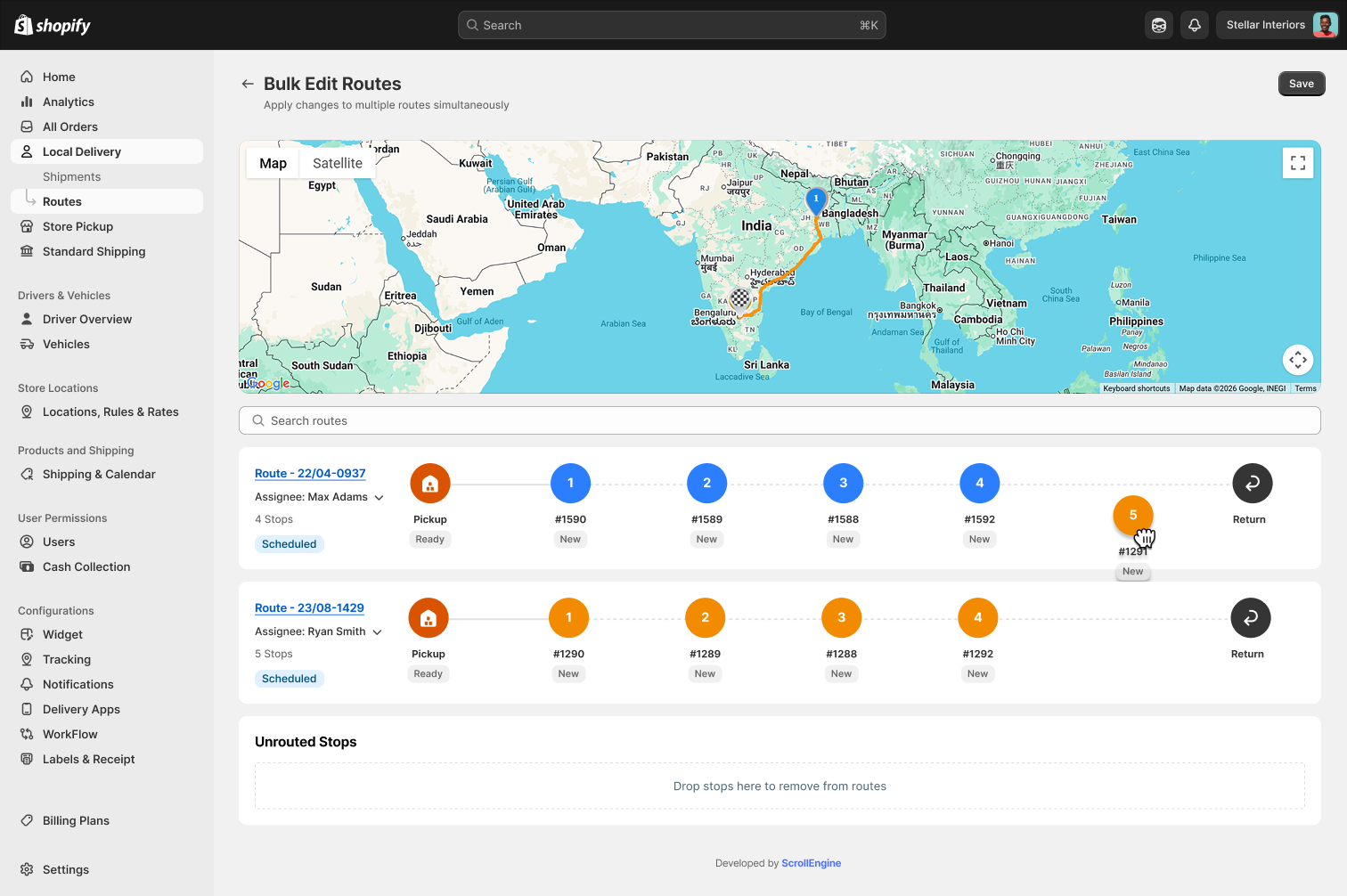
Bulk route editing opens several delivery routes on one map so you can drag stops between them, rebalance drivers and pull stops a route can't reach without rebuilding the plan. ScrollEngine's multi-route editor is in early access.

Bulk route editing means changing several delivery routes at once: you open them together on one map and move stops between them, instead of editing each route one by one. It is how you fix the plan after optimization, when one driver is overloaded, another has room, or a few stops just don't fit.
Local delivery rarely goes exactly as planned. Orders arrive late, drivers call in sick, and a route that looked clean in the morning breaks by lunchtime. For Shopify stores running their own drivers, the real test is not building routes; it is changing them quickly. Here is how bulk route editing works and ten tips for doing it well.

Bulk editing is one of four ways to change a delivery plan. Pick the one that fits the change:
| Situation | Best tool | Why |
|---|---|---|
| Many new orders, or a driver fewer, before routes go out | Re-run route optimization | The optimizer rebalances everything against windows, shifts and capacity |
| A few stops need to move between planned routes | Bulk route editing | Fast, visual, and you keep the rest of the plan |
| One late order needs a home | Add it to an existing route | No need to touch other routes |
| A route is already on the road | Live route editing | Change stops mid-route; ETAs recalculate |
In theory, planning is a straight line: choose the stops, optimize the run, send drivers out. In practice, the plan shifts all day. One route gets overloaded while another driver has space. A priority order comes in after routes are built. A neighborhood ends up split across two vans.
If your tools force you to change routes one at a time, every small fix means opening a route, removing a stop, opening another route and adding it back. That friction adds up fast. Bulk editing turns it into a single drag on one screen.
ScrollEngine's multi-route editor Early access works in the standalone ScrollEngine web dashboard, which you open from the app (it isn't shown inside Shopify admin):
Let route optimization build the plan from your delivery windows, shifts, breaks and vehicle capacity. Bulk editing is for the handful of stops the plan gets wrong, not for building routes from scratch. If you find yourself moving most stops, re-run optimization with better limits instead.
Ten stops in one apartment block can take less time than four spread across town. Look at where stops sit on the map as well as the stop count on each route before you move anything.
Each route has its own color on the map. When a stop sits inside another route's area, move it there. Routes that stay in their own neighborhoods use less fuel and run more reliably.
Moving a stop to a different route, or to a later place in the order, changes when it arrives. Before you save, check that the stop can still make the slot the customer booked at checkout.
The optimizer respects vehicle capacity when it builds routes. When you move a stop by hand, make sure the van or bike taking it can actually carry the order, especially for bulky items.
Not sure where a stop goes yet? Drop it under Unrouted stops, finish rebalancing the rest, then decide. It's better than squeezing a stop onto a route that can't reach it in time.
If several stops end up unrouted, save, then create a new route from them for a spare driver or a later wave. It is often faster than forcing them onto full routes.
Bulk editing is best for rebalancing routes before they go out. Once a driver has started, use live route editing: add, remove or reorder stops on that route, and ScrollEngine recalculates ETAs for the stops that remain.
Drivers work from the routes saved in ScrollEngine, so save before they load the vehicle. If you change anything after they have left, give the driver a quick heads-up so nobody is surprised at the next stop.
If the same routes need fixing every day, the inputs are wrong. Use driver scorecards in the standalone web dashboard to spot routes that run long, then adjust zones, shifts or vehicle capacity so tomorrow's optimized plan is closer to right.

Whether you deliver flowers, groceries or hardware, the pattern is the same: let optimization do the heavy lifting, then fix the exceptions in one place.
Fast changes need a solid plan underneath. In ScrollEngine, routes come from the delivery slots customers book in your Shopify store, optimization plans them for several drivers at once, and drivers run them in the driver app. See how the ScrollEngine route planner builds that plan, or follow the help guide to optimize routes for multiple drivers.
Growing order volumes need a plan that can change. Fixed routes fall short in busy local markets, but rebuilding routes every time something shifts wastes the morning. Optimize first, then use bulk editing to fix the exceptions on one map, and live editing for routes already on the road.
Install Local Delivery + Pickup Date:S from the Shopify App Store to plan optimized routes for your drivers, then fix the exceptions on one map.
FAQ
Bulk route editing means changing several delivery routes at once: opening them together on one map and moving stops between them, instead of editing each route one by one. It is a quick way to rebalance drivers after routes are planned.
Re-optimize when a lot has changed before routes go out, such as many new orders or a driver fewer. Edit by hand when a few stops need to move between routes. For a route that is already on the road, use live route editing.
Yes. In the standalone ScrollEngine web dashboard (not inside Shopify admin), select two or more routes on the Routes list and choose Bulk edit. The multi-route editor, in early access, shows them on one map and lets you drag stops between routes, reorder them or take them off every route.
They wait under Unrouted stops. After you save, you can add them to another route or create a new route from them, so no order is lost.
Yes. In ScrollEngine, routes stay editable after they start: add, remove or reorder stops, and ETAs are recalculated for the stops that remain.
From the blog
Most Shopify stores need five local delivery tools: zones and rates, a date and time slot picker with limits…
Route optimization cuts fuel and delivery time for Shopify stores by putting stops in the order that takes…
ScrollEngine, our app, does the whole job in one app: delivery slots at checkout…
Book a demo and we'll walk you through the platform set up like your stores, or request a quote for your locations and how you deliver.
2,000+ merchants trust us (as of Oct 2026)100+ merchants rate us 5.0 stars on the Shopify App Store (as of Oct 2026)