How Route Optimization Transforms Delivery Operations
Route optimization turns delivery planning from a morning of manual sequencing into a review…
Insights
Delivery analytics turn last week's orders, shipments, routes and drivers into decisions: where to add a driver, which slots to cap, when to open more pickup. ScrollEngine shows them over the last day, week or month, and exports them.

Analytics power better local delivery decisions by showing what actually happened: how many orders became shipments, where shipments stalled, how many routes were delayed or left incomplete, and how customers chose between delivery and pickup. Read once a week, those few numbers tell you when to add a driver, change a slot limit or open more pickup. Below are the metrics that matter, where to find each one in ScrollEngine, and the decision each should trigger.

Local delivery rarely fails all at once. A backlog builds over a few days, one route runs late every Thursday, pickup orders sit uncollected. By the time customers complain, the pattern is weeks old, and customers don't give many second chances: According to AlixPartners' 2026 Home Delivery Survey, 52% of shoppers will stop buying from a retailer after just one or two missed deliveries. AlixPartners, 2026 Home Delivery Survey (Jun 2026)
ScrollEngine's app, Local Delivery + Pickup Date:S, gives Shopify merchants one dashboard for the whole delivery operation, so you can spot those patterns while they're still small.
| Metric | What it measures | Where to find it in ScrollEngine | Decision it drives |
|---|---|---|---|
| Orders vs shipments | Orders placed against shipments created | Analytics dashboard | Add prep staff or a driver shift when shipments lag |
| Shipment status over time | How shipments move from created to delivered | Analytics dashboard | Find the stage where orders wait |
| Route status | Routes by status: scheduled, live, delayed, incomplete, completed and more | Analytics dashboard | Spot periods when routes run late or don't finish |
| Delivery vs pickup mix | Orders by fulfillment method | Analytics dashboard | Adjust pickup hours, slot limits and driver shifts |
| On-time rate per driver | Deliveries completed inside the promised window | Driver scorecards (web dashboard) | Rebalance routes, review zones, coach |
| Utilization and distance | Deliveries, distance and time on the road per driver | Driver scorecards (web dashboard) | Right-size the fleet |
| Customer ratings | Ratings customers leave after delivery | Driver scorecards (web dashboard) | Follow up on low ratings |
The analytics dashboard shows its views over the last 24 hours, 7 days or 30 days. Here's how to read each one.
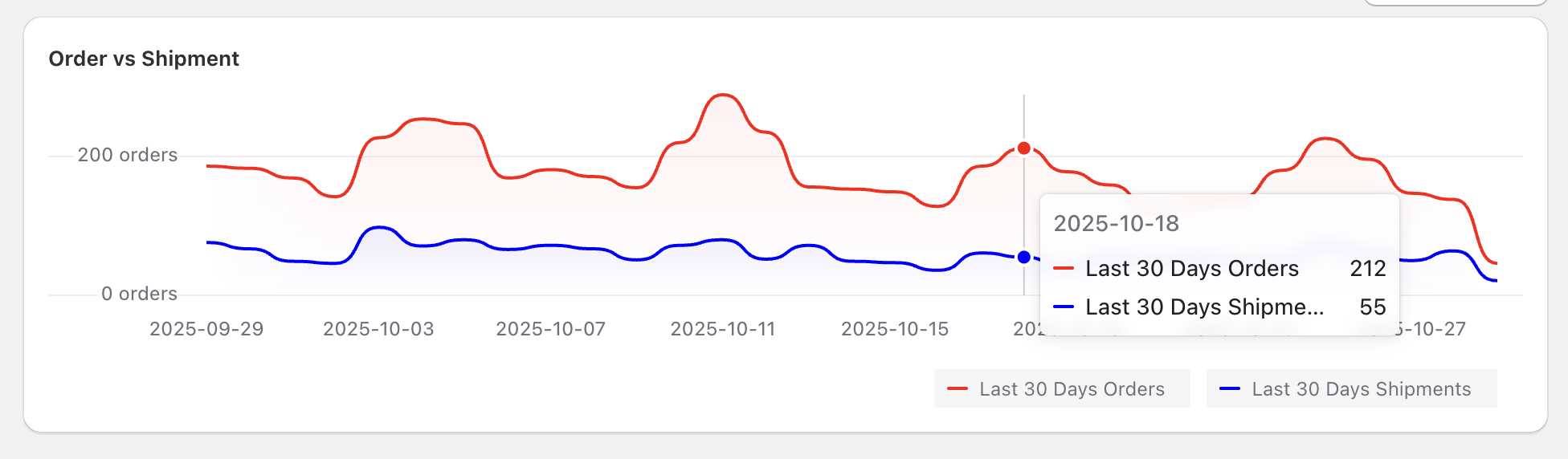
This chart puts the orders you received next to the shipments you created. The two lines rarely match exactly, because not every order becomes a local shipment on the day it arrives (shipping orders, for example), so watch the gap rather than the totals. When the gap stays steady, fulfillment keeps pace. When orders climb and the gap widens, a backlog is forming in picking, packing or dispatch.
What to do: if the gap opens on the same weekdays, add prep staff or a driver shift on those days, or lower that day's slot limits until you can. Before a holiday rush, check the 30-day view to see how your busiest days compared.
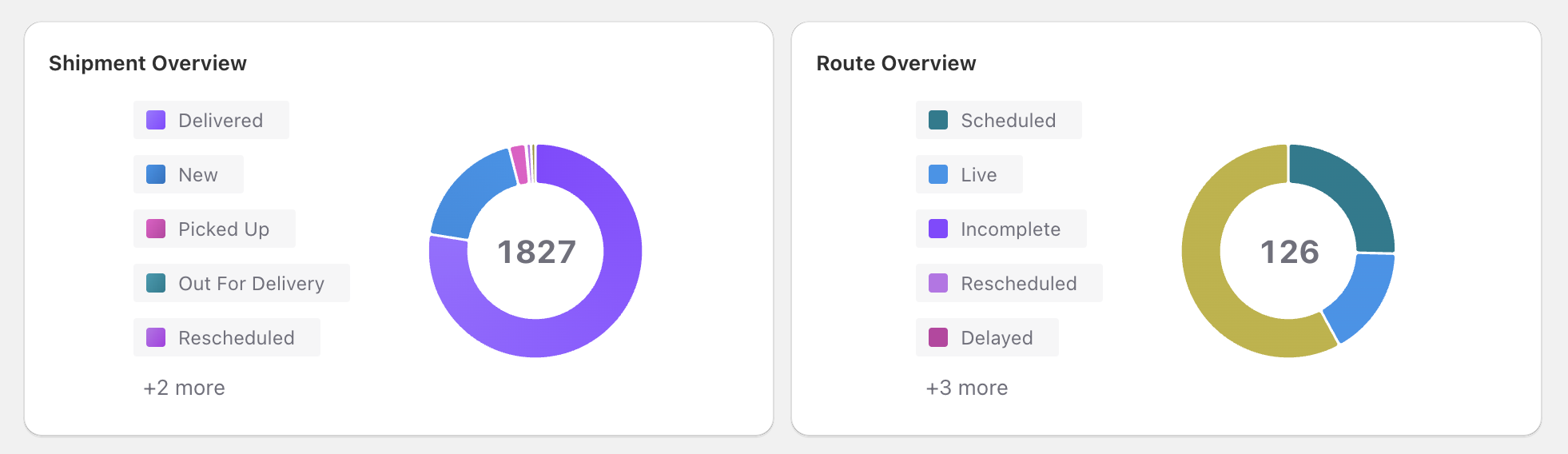
This view counts your shipments by status (new, picked up, out for delivery, delivered, rescheduled and more) for the period you choose. In a healthy operation most shipments sit in delivered; a growing share in any earlier status is your bottleneck.
What to do: if shipments pile up before they go out, look at prep time and cutoffs. If they pile up out for delivery, routes are too long or start too late. If rescheduled shipments are rising, check addresses and delivery windows.
Route counts by status show how many routes were scheduled, live, delayed, incomplete or completed across the period you choose, next to shipment counts by status.
What to do: if the delayed or incomplete share grows, make routes shorter or add a driver, and let route optimization plan around shifts and breaks. If routes are created late, move the order cutoff earlier. For the day itself, the live driver map and at-risk alerts in the ScrollEngine web dashboard show trouble while it's happening, so dispatchers can reroute a delayed driver.
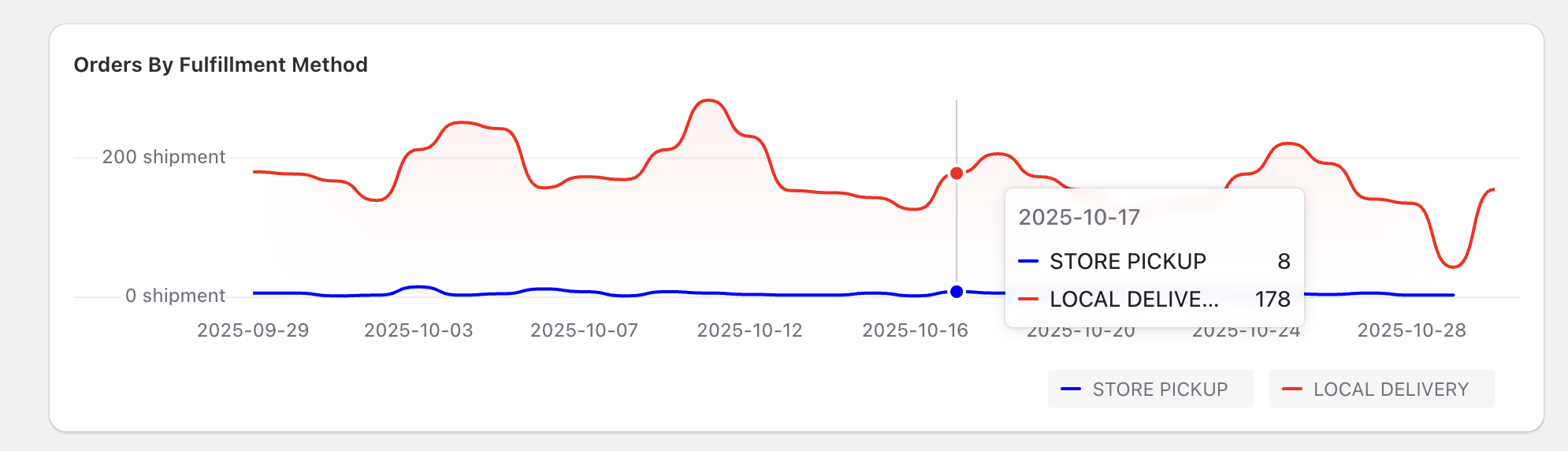
This chart shows how customers choose between local delivery and store pickup.
What to do: if pickup's share grows, extend pickup hours or add pickup slots. If delivery's share grows, add a driver shift and revisit slot limits. If pickup stays near zero, check that pickup is easy to find in your cart widget.
Driver scorecards, in the ScrollEngine web dashboard (not inside Shopify admin), give every driver a row: deliveries, distance driven, time on the road, utilization, ratings and on-time rate, with fleet averages and a one-click export. Daily attendance and an activity log sit alongside, with a drill-down for each driver.
What to do: compare each driver with the fleet average before drawing conclusions. A low on-time rate often traces back to an overloaded route or a hard zone, not to the driver, so check route length and stop count first.
Failed deliveries cost twice: the wasted trip and the second attempt. Loqate's 2020 survey found that 8% of domestic first-time deliveries fail, costing retailers an average of $17.20 per order. Loqate (GBG), Fixing Failed Deliveries 2021 (Dec 2020), 2020 fieldwork Watch for shipments that end up rescheduled, and use proof of delivery (photo, signature and notes) to see what happened at the door. A pin-drop link that lets customers confirm their exact location helps when addresses are vague.
When a chart isn't enough, the report engine exports orders, shipments, routes and driver data to CSV, with a column picker, saved presets and email delivery. Finance gets its numbers without anyone building a spreadsheet by hand.
For stores using automated dispatch Early access, two more views help: dispatch performance Early access, which shows how many orders drivers accepted and how long acceptance took, and vehicle shortage by time of day Early access, which counts the dispatch rounds that found no driver in range, by time and vehicle type. Both count what already happened, which makes them useful for planning shifts.
| If you see | Try |
|---|---|
| Shipments lag orders every Saturday | Add a Saturday driver shift, or lower Saturday's slot limits |
| Pickup's share keeps rising | Extend pickup hours or add pickup slots |
| One zone's deliveries finish late | Narrow the zone or move it to a closer location |
| One driver's on-time rate trails the fleet average | Check that driver's route length and stop count first |
| More shipments rescheduled | Review cutoffs, prep time and address quality |
Numbers like these are what let a store grow without losing control. For the operational side of growth, see our local delivery scale strategies. After your busiest weekend of the year, the same review shows what to change; our BFCM delivery playbook ends with it. To see how routes and live tracking feed these numbers, explore routes and dispatch and tracking and updates.
Delivery data changes how you run your store: fewer surprises day to day, and clearer calls on drivers, slots and pickup as you grow. ScrollEngine keeps the numbers in the same place your team plans routes and serves customers.
Ready to run local delivery on numbers instead of guesswork? 👉 Try Local Delivery + Pickup Date:S on the Shopify App Store today.
FAQ
Start with seven: orders placed vs shipments created, shipment status over time, route status, the delivery-versus-pickup mix, on-time rate per driver, driver utilization and distance, and customer ratings. Review them weekly and tie each one to a decision, such as adding a driver shift or changing a slot limit.
Divide the deliveries completed inside the promised window by all deliveries in the period, then multiply by 100. Measure against the slot or window the customer chose, not just the day, and look at it per driver and per zone so one late route doesn't hide inside the average.
It's the share of deliveries completed first time, without a reschedule or a return to the store. A low rate usually points to unclear addresses, missed windows or customers who didn't know when the driver would arrive; map-pin addresses, clear time slots and live tracking all help.
No. ScrollEngine's analytics describe what has happened: orders and shipments over the last day, week or month, shipment and route status, the delivery-versus-pickup mix and driver scorecards. Use those patterns to plan, but there is no forecasting model behind them.
Driver scorecards are in the ScrollEngine web dashboard, not inside Shopify admin. They show each driver's deliveries, distance, time on the road, utilization, ratings and on-time rate, with fleet averages and a CSV export.
From the blog
Route optimization turns delivery planning from a morning of manual sequencing into a review…
Most Shopify stores need five local delivery tools: zones and rates, a date and time slot picker with limits…
Poor delivery management costs far more than fuel and driver pay: second attempts, refunds…
Book a demo and we'll walk you through the platform set up like your stores, or request a quote for your locations and how you deliver.
2,000+ merchants trust us (as of Oct 2026)100+ merchants rate us 5.0 stars on the Shopify App Store (as of Oct 2026)